

See our backup power picks and preparedness tools at griddownpower.com.
The short answer: The best way to harden your home against AI hackers and rogue AI agents is simple. Keep only the devices you use yourself, like your phone, computer, and tablet, on your main WiFi. Put everything else, like smart TVs, fridges, cameras, doorbells, thermostats, and smart speakers, on a separate guest WiFi network. If one of those gadgets gets hacked, and your guest network is set up right, the hacker is stuck on the guest network and can’t get to your computer or phone. Then, when you have time, change a few settings on those gadgets.
Doc recommends … Get Starlink
Doc’s Pick for a Backup Network: Starlink
We recommend Starlink, and here’s why. Starlink has a guest network that’s kept separate from your main network, so your smart TVs and gadgets can’t reach your phone or computer, and it doesn’t shut off after a few hours. Right now Starlink is offering free equipment and residential service for $55 a month, which makes it a great backup. It’s smart to have two internet connections. If you already have cable, add Starlink. That way, if one goes down, you still have the other. Starlink also keeps working during a power outage, as long as you can give it power from a battery, a power station, or a generator. Get Starlink Here
Which Internet Companies Offer a Guest Network?
We checked each company’s own support pages on November 15, 2026. Here’s what we found for the WiFi box each one provides. Equipment and apps change, and features can vary by model. Always check your own app or call to be sure.
Important: A “WiFi hotspot” that your internet company broadcasts for its other customers is not the same as a guest network. Your smart gadgets can’t use it.
Yes: Guest Network Available
- AT&T (Fiber and Internet): Yes. In the Smart Home Manager app, tap My Wi-Fi, then Create guest Wi-Fi. Check that the guest network is set to “Internet only.” Features vary by gateway model.
- Starlink – Easy guest network and will not allow cross to main network.
- Verizon Fios: Yes. In My Verizon, go to Services, then Internet, then your Guest Network, and enable it. Verizon’s own user guides for its Fios routers, including the Fios Router (G3100), say the guest network is kept apart from your main network by firewalls. If you have a newer Verizon router, check your guest network settings to be sure.
- Verizon 5G Home: Yes. Sign in to your router’s settings page, open Wi-Fi, and turn on Guest Wi-Fi. Verizon’s gateway manual says the guest and main networks are “separated from each other through firewalls.”
- Verizon LTE Home: Yes. On the router’s settings page, go to Wi-Fi Settings, then Guest. Verizon says guests don’t get access to your main network.
- Google Fiber: Yes, on its Wi-Fi 6, Multi-Gig, Wi-Fi 6E, and Wi-Fi 7 routers, through the gFiber app. Some older routers use a different app.
- CenturyLink: Yes, on its modems. Sign in to the modem settings page and look for Guest Wireless Setup. On some models, you set up a second network instead (you may see it labeled SSID2). That second network may not be walled off, so ask CenturyLink to check.
- Brightspeed: Yes. The steps are like CenturyLink’s: Guest Wireless Setup on some modems, or a second network on others. If you use the second-network option, ask Brightspeed whether it’s walled off.
- Kinetic (Windstream): Yes. Kinetic says you can turn on guest networks in its Go Kinetic app.
- Frontier: Yes, with Frontier’s eero WiFi system, in the eero app under Settings. The company that makes eero says guest devices can’t reach your main network.
- Sparklight (Cable One): Yes, with Sparklight’s eero WiFi system, in the eero app.
- Metronet: Yes, with Metronet’s eero WiFi system, in the eero app.
- WOW!: Yes, with WOW!’s Whole-Home WiFi add-on, which uses the eero app. The add-on may cost extra (about $10/mo when I checked).
- Ziply Fiber: Yes, on Ziply’s WiFi 7 router, through its app, according to a Ziply blog post. I couldn’t confirm it for older Ziply routers.
Maybe: It Depends
- Mediacom: Probably. Mediacom’s plans come with eero WiFi, and eero has a guest network. But I couldn’t find a Mediacom page that says so. Check the eero app or call.
- Starlink: Probably, on newer routers. Starlink users say the app added a guest network option. But Starlink’s own help page I found doesn’t list it. Check the Starlink app.
- Optimum: It depends on your box. Optimum’s help page says its older Smart Router can turn on a guest network. I couldn’t confirm it for newer gateways. Look for a guest network option in the My Optimum app.
- T-Mobile 5G Home Internet: Not a true guest network. The T-Life app lets you add up to four extra WiFi networks. But T-Mobile doesn’t say those are walled off from your main network, and one T-Mobile gateway page says the device “doesn’t have a dedicated guest network.”
- US Cellular Home Internet: T-Mobile is moving these customers to T-Mobile 5G Home Internet and sending them a new gateway. See T-Mobile above.
No: Guest Network Not Offered
- Xfinity (Comcast): No. Xfinity’s own help page lists two ways to get guests online: share your main WiFi, or use the “xfinitywifi” hotspot. Neither one is a good fit for your smart gadgets. Xfinity staff say its gateways don’t have a guest network. If someone suggests “splitting bands” to make a “guest” network, that’s just a second name on your main network, not a walled-off guest network.
- Spectrum: No. Spectrum’s own router guides list what its routers can do, and a guest network isn’t on the list. A Spectrum employee confirmed this on its forum in February 2025.
- Cox (now part of Spectrum): No. A Cox support moderator says its Panoramic WiFi gateways don’t offer a guest network. (I couldn’t load Cox’s support pages to double-check.) The “CoxWifi” hotspot needs a Cox login.
- Quantum Fiber (now part of AT&T): No. In a July 2026 article, Quantum Fiber says it does not offer a traditional standalone guest network. Its app lets guests join your main network with a QR code instead.
If your company is in the “No” group, look at “What If My Router Doesn’t Have a Guest Network?” above.
The Number One Rule: Only Your Own Devices Go on Your Main WiFi
Here’s the most important thing in this whole article.
The only things on your main WiFi should be the devices you personally use. That means your phone, your computer, and your tablet.
Everything else goes on a guest network. That means:
- Smart TVs and streaming boxes
- Fridges, washers, and other smart appliances
- Security cameras and video doorbells
- Thermostats
- Smart speakers
- Smart plugs and smart light bulbs
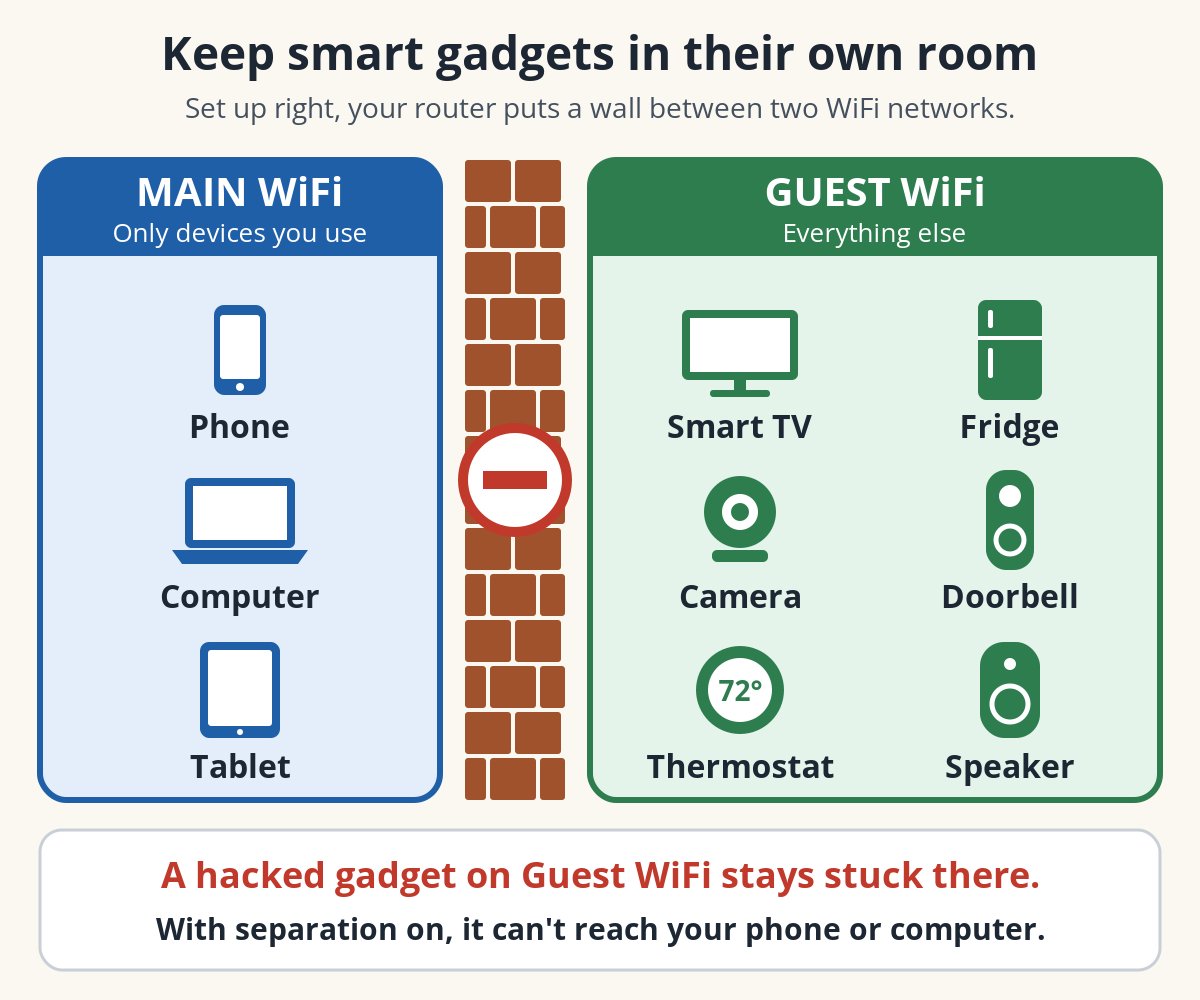
Keep only your phone, computer, and tablet on your main WiFi. Everything else goes on a walled-off guest network.
Think of your home WiFi like a house. A guest network that’s set up right locks your smart gadgets in their own room. If a hacker or a rogue AI agent gets in through one of those gadgets, they’re stuck in that room. Only your computer, phone, and tablet are on the main network, on the other side of the wall.
It’s not a force field, but it’s the one change that does the most good.
Why Are Smart Gadgets the Weak Spot?
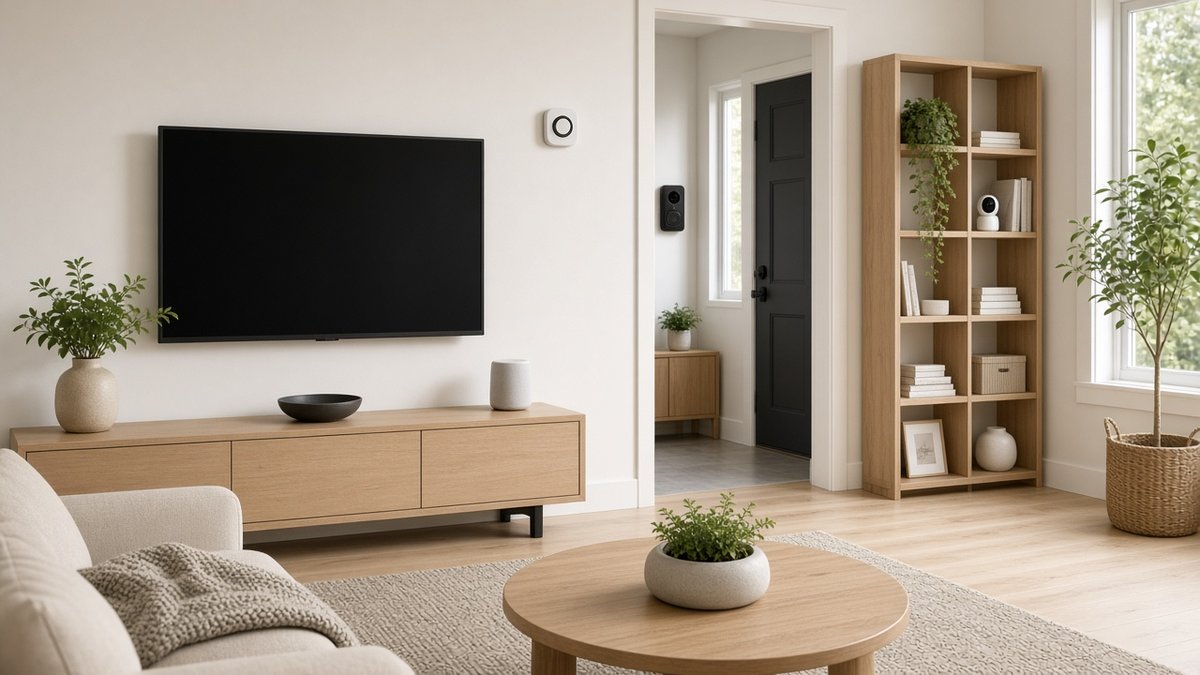
Smart TVs, speakers, thermostats, doorbells, and cameras are the gadgets to move to your guest WiFi.
Your computer, phone, and tablet usually get regular security updates. A lot of smart gadgets don’t. Some never get updates at all. Many come with weak or default passwords. That makes them often the easiest way into a home network.
This isn’t just theory. In June 2025, the FBI warned that criminals were getting into home networks through cheap internet-connected gadgets, like TV streaming boxes, projectors, and digital picture frames. The FBI said millions of infected devices were part of this scheme, called BADBOX 2.0. Some came with bad software already on them, right out of the box.
The federal government’s cyber defense agency, CISA, says to put smart home gadgets on your guest WiFi if internet access is all they need. CISA says this keeps them from finding the other devices on your home network. NIST researcher Julie Haney (April 2, 2025) gives the same advice. You don’t want the computer with your bank records on the same network as your smart doorbell.
What Are Rogue AI Agents, and How Do They Change Things?
An AI agent is an AI program that can do tasks on its own, step by step, without a person typing every command. A “rogue” AI agent is one being used to cause harm.
Here’s what we know from reputable sources, without the hype:
- AI makes hacking faster. On November 13, 2026, the FBI warned that hackers are misusing an AI tool called ARTEX to automate break-ins “at machine speed.” Some break-ins went from first target to high-level access in under three hours. The FBI’s warning is about attacks on companies and government agencies, not homes.
- AI helps hackers find weak devices. In August 2026, the NSA, FBI, CISA and other agencies warned that hackers used internet scanning services to find poorly protected industrial control equipment. Then they used AI-written programs to break in. Weak and default passwords helped them get in. This was equipment that runs factories, power and water systems, not home gadgets. But the lesson is the same.
- Weak devices are already in our homes. The FBI’s BADBOX 2.0 warning shows that home gadgets are already being used to get into home networks.
Put those together, and here’s my take. AI makes it cheaper and faster for bad guys to look for weak spots. The weak spots in most homes are the smart gadgets. So wall them off.
AI doesn’t give anyone magic access to your WiFi. The same steps help protect you from regular hackers and AI-driven ones.
Step 1 (Easy and Most Important): Set Up a Guest WiFi Network
Most people can turn on a guest network in a few minutes using their internet company’s phone app.
This is the step that matters most. If you only do one thing from this article, do this.
Most internet companies give you a box called a router or gateway. It’s the box with the blinking lights that makes your WiFi. Many of these boxes can make a second WiFi network called a guest network. Some can’t. I’ll show you which major companies have it further down.
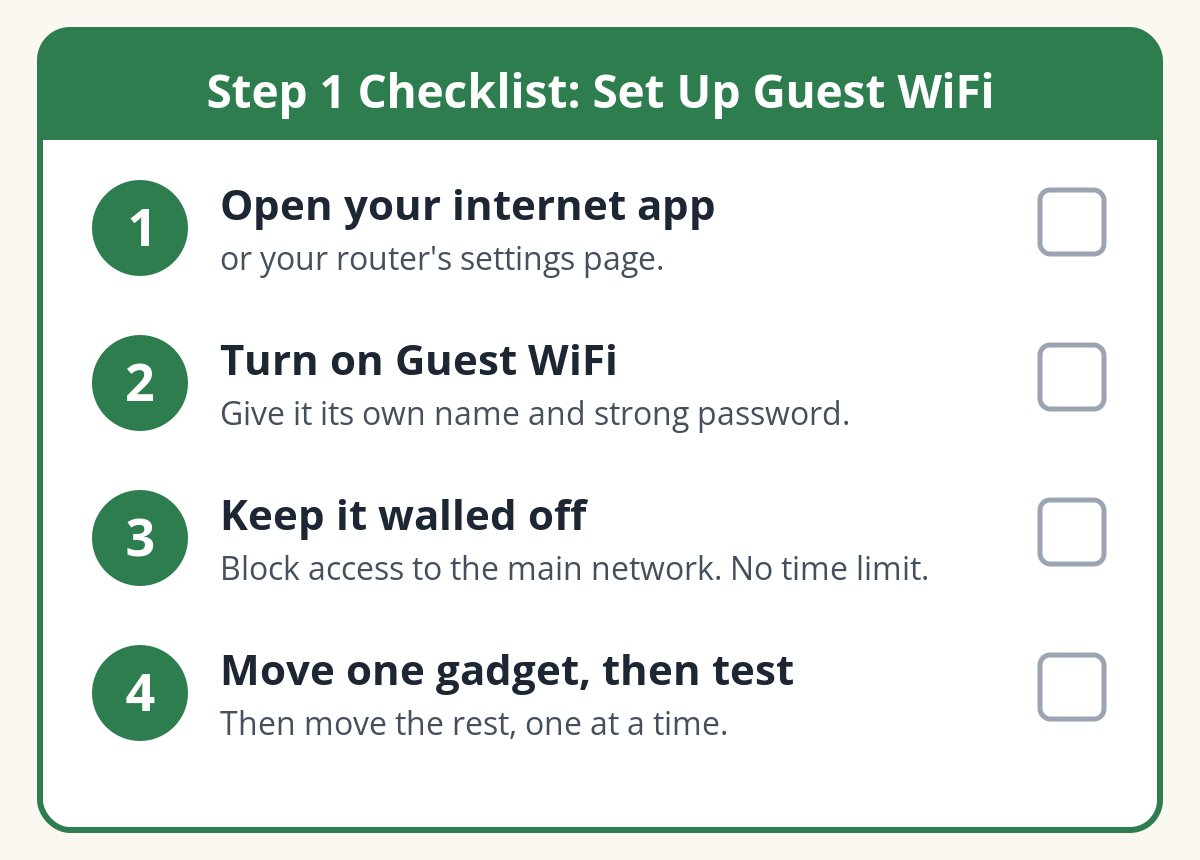
The four parts of Step 1 at a glance. Print it or keep it open on your phone.
Before You Start
- Pick a quiet time. Choose a time when nobody needs the internet for work or a call.
- Leave important equipment alone. Don’t move medical devices, a monitored alarm system, or other safety equipment without help from that company.
- Don’t press the reset button on your router. You don’t need to.
- Keep your main WiFi name and password the same. That way your phone, computer, and tablet stay connected.
1. Find Your Router
Find the box that makes your WiFi. Look at the label on it. It shows who made it and the model. Your internet company may own it.
2. Open Your Router’s Settings
There are two common ways in:
- Your internet company’s app. Many companies have a free phone app for managing your WiFi. Sign in with your internet account.
- The router’s settings page. Some labels list a web address and an admin password. You type the address into a web browser on a device connected to your WiFi.
Use your internet company’s own instructions for your model. Don’t guess at web addresses or passwords. If you can’t get in, call your internet company.
Good to know: there are two different passwords. Your WiFi password lets a device join your network. Your router password (or app login) lets you change the router’s settings. They should not be the same.
3. Turn On Guest WiFi
Look for a menu called something like “Guest Network,” “Guest WiFi,” or “Add Network.” Then:
- Turn it on.
- Give it its own name, like “Home-Devices.” Don’t use your name or address.
- Give it a strong password. CISA suggests a passphrase of 5 to 7 random words, at least 16 characters long. Don’t reuse your main WiFi password. Write it down and keep it somewhere safe.
- Pick the security setting “WPA3” or “WPA2 (AES)” if you see a choice. These scramble your WiFi signal. Never pick “Open” or “None.”
- Save.
4. Make Sure the Guest Network Is Walled Off
This is the step most people skip. Turning on “Guest” doesn’t always build the wall.
- Look for a setting that keeps guests away from your main network. It might say something like “Allow guests to access my local network” or “Allow local access.” That should be off. If the setting is called “isolation,” it should be on.
- Look for a time limit. Many guest networks are made for visitors, so they may shut off after a few hours or days. Smart gadgets need the network to stay on. Pick “always on” or “no time limit” if you see it.
- Save, then check again to make sure your choices stuck.
Some routers wall off the guest network on their own. Others need a setting changed. Some can’t do it at all. If you can’t tell, ask your internet company. I’ve put a short script below that you can read to them.
5. Move One Gadget First
Start with something simple, like a smart plug or your TV.
- Open that gadget’s own app or settings menu and find the WiFi setting.
- Pick your new guest network and type in the guest password.
- Make sure the gadget still does its job. Can the lamp turn on? Can the TV stream a show?
Some gadget apps need your phone on the guest WiFi just while you set them up. If so, switch your phone back to your main WiFi when you’re done.
6. Do a Simple Test
You don’t need any special app for this. Use your TV:
- Put your TV on the guest WiFi.
- Keep your phone on your main WiFi.
- On your phone, open a video app and tap the “cast” or “screen share” button.
If your phone can still find your TV, the wall is probably not up. Go back to Step 4.
If it can’t find the TV, that’s a hint, not proof. The best check is your router’s guest setting or your internet company confirming that guests can’t reach your main network.
7. Move Everything Else, One at a Time
Once the first gadget works, move the rest, one at a time. Test each one before you move the next.
Heads up: With the wall up, you may not be able to cast from your phone to your TV anymore. That’s usually a sign the wall is working. You can use the TV remote instead. Some cameras and doorbells may also show live video only through the company’s app over the internet, not directly on your phone over your home WiFi. That’s normal, too. A printer or game console is a judgment call. If you move a printer to the guest network, your computer may not be able to print to it. A game console may lose some features that need your phone or other home devices. Many people leave the printer and game console on the main WiFi.
What to Say to Your Internet Company
If you get stuck, call them and read this:
“I want my smart devices on a password-protected guest WiFi network that can’t reach the computers and phones on my main network. Can my router do that? Please help me check the settings. I don’t want to reset my router or change my main WiFi name and password.”
What If My Router Doesn’t Have a Guest Network?
You still have options:
- Ask your internet company whether they have a newer router or a setup that can do it.
- Use your own router or mesh WiFi system that has a guest network with isolation. (A mesh system is a set of small WiFi boxes that spread the signal around your house.) Your internet company can usually help you hook it up. They may turn off the WiFi on their box so the two don’t fight.
Step 2 (More Work): Change the Settings on Your Smart Gadgets
Step 2 takes more patience. Go one gadget at a time, starting with your TV.
Step 2 is about going into your smart gadgets, one at a time, and changing a few settings to make them harder to break into.
I’ll be honest. This part can be frustrating. Every TV, camera, and fridge has different menus, and some are buried deep. If this feels like a lot, you’re not alone. That’s exactly why Step 1 matters most. The guest network still helps even if you never get to Step 2.
When you’re ready, do these one gadget at a time:
1. Change Default Passwords
If a gadget or its app came with a password like “admin” or “1234,” change it. Use a long password that you don’t use anywhere else. Do the same for your router’s settings password.
2. Turn On Two-Step Login
Two-step login (also called multifactor authentication, or MFA) means you need a second check, like a code sent to your phone, to sign in. Turn it on for your camera, doorbell, and smart home apps, and for your internet company’s app. CISA says it can make you significantly safer online, because a stolen password alone isn’t enough to get in.
3. Turn On Automatic Updates
Updates fix security holes. Look for “automatic updates” or “software update” in each gadget’s settings and turn it on. Do the same for your router. If a gadget is so old that it no longer gets updates, it may be time to retire it.
4. Turn Off Features You Don’t Use
- Router remote management. This lets someone change your router’s settings over the internet. CISA says to turn it off. If your internet company manages your router through an app, ask them first.
- UPnP (Universal Plug and Play). This setting helps gadgets connect easily, but CISA says hackers can use it to spread harmful software. CISA says to turn it off. Some gadgets need it on during setup, so you can turn it off afterward.
- TV “viewing data.” Many smart TVs watch what’s on your screen to target ads. It’s often called ACR (automatic content recognition). In your TV’s privacy settings, look for words like “viewing data,” “viewing information,” or “use info from TV inputs,” and turn them off. This is more about privacy than hacking, but it’s worth doing while you’re in there.
5. Be Careful What You Buy
The FBI warns about off-brand streaming boxes sold as “unlocked” or offering “free” TV channels, and about apps from unofficial app stores. Buy gadgets from companies you recognize, and get apps only from the official app store.
6. Remove Old Gadgets
Unplug gadgets you don’t use anymore. Remove them from your WiFi and from your accounts.
What a Guest Network Can’t Do
I want to be straight with you:
- It lowers your risk. It’s not a guarantee. It only helps if your router really keeps the two networks apart. That’s why you check it.
- Your gadgets still talk to the internet. A smart fridge on the guest network can still connect to its maker’s online service. If someone steals your fridge account password, the guest network won’t stop that. That’s what Step 2 is for.
- Guest gadgets may still see each other. Some routers keep guests off your main network but let guest devices talk to each other. That’s still much better than having everything on one network.
- Some routers block guest gadgets from each other completely. On some routers, guest gadgets can’t talk to each other at all. That can break speaker groups or smart-home hubs.
- Wired gadgets may not move. A gadget plugged in with a cable may still be on your main network.
You don’t need to be a computer expert to protect your home from AI hackers. Start with Step 1. Put your phone, computer, and tablet on your main WiFi. Put everything else on a guest network that’s walled off. Then test it with your TV.
When you have time, work through Step 2 one gadget at a time. And if you get stuck, call your internet company and read them the script above.
— Doc